Introduction
The Rectangle Tool in Inkscape is one of the most commonly used shape tools, perfect for creating boxes, buttons, backgrounds, icons, and other basic design elements. You can quickly access it by using shortcut key R or F4, or by clicking the rectangle icon in the toolbar.
The Rectangle Tool is a reliable starting point for creating designs in Inkscape. It’s commonly used for drawing basic shapes, structuring layouts, and building detailed illustrations. This tool lets you draw both sharp-edged and rounded rectangles with ease. You can also change their size, position, and corner radius directly from the Tool Controls Bar or by using the Transform panel for precise adjustments.
Handles of Rectangle
Square Handles – Resize the Rectangle
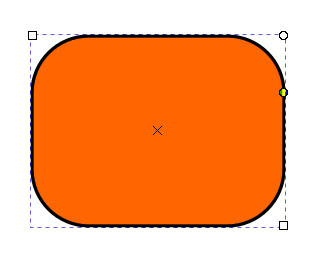
The square handles located at the top-left and bottom-right corners are used to resize the rectangle. Simply click and drag these handles to adjust the width and height according to your design needs. This gives you full control over the rectangle’s dimensions directly on the canvas.
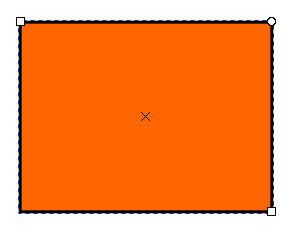
Circle Handles – Create Rounded Corners
The circle handle at the top-right corner is used to create rounded corners in your rectangle. There are two handles, one for the horizontal (X) and one for the vertical (Y) axis, but only the vertical one is visible at first.
When you drag the visible handle downward, the rectangle’s corners become rounded, and the second handle (for the X-axis) appears. Moving this new handle to the left creates elliptical rounded corners. The dragging of these handles changes the radii of curvature in the horizontal (x) and vertical (y) directions to make the corners round.
Transform & Scaling Techniques
Using the Selector Tool
The Selector Tool is the main tool for transforming rectangles or any object in Inkscape including scaling, moving, rotating, and skewing. You can switch to the Selector Tool by pressing the Spacebar, and press it again to return to the Rectangle Tool.
If the Selector Tool is already active, double-clicking on a rectangle will also reopen the Rectangle Tool.
Using Transform Panel
The Transform Panel in Inkscape provides precise control for moving, scaling, rotating, and skewing objects using exact numerical values. It’s ideal when you need consistent measurements or want to apply the same transformation to multiple objects.
You can open the panel by going to Object › Transform or by pressing Ctrl+Shift+M. Each tab in the panel lets you perform a specific action, Move, Scale, Rotate, Skew, or Transform by Matrix, by entering exact numbers instead of dragging handles manually.
This method is especially helpful for designers who prefer accuracy and want to make subtle adjustments without relying on mouse movements. When working with rectangles, it allows you to resize, rotate, or position them precisely for creating clean and symmetrical designs.
Rectangle Tool Control Bar

Scaling Options
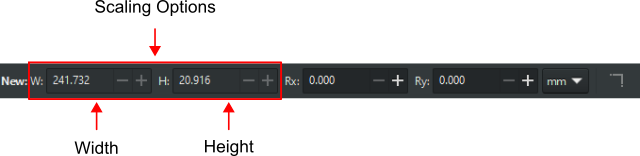
Another method to adjust rectangle dimensions is by changing the width and height directly in the Rectangle Tool Control Bar. The field labeled W is for the width, and H is for the height. You can also use the other alternative Scaling Techniques we discussed earlier.
Corner Radius Options

You can create smooth, rounded rectangles by setting exact corner radius values in the Control Bar. In the Tool Controls bar, the fields Rx and Ry control the radius of curvature. Rx is for the horizontal axis, and Ry is for the vertical axis. These settings will affect any selected rectangle. You can also use Circle handles for creating round corner rectangles visually on the canvas.
Unit of Measurement

The drop-down menu shows the current unit of measurement for the rectangle. From this menu, you can change it to another, like pixels (px), centimeters (cm), inches (in), etc.
Make Corners Sharp

To restore the sharp corners and remove the rounded corners from a rectangle, click on the Make Corners Sharp button, the right-most button in the Tool Controls bar.
Make a Perfect Square Using the Rectangle Tool
To create a perfect square in Inkscape, hold down the Ctrl key while dragging the mouse to maintain equal dimensions. Ctrl is used to constrain the width and height ratio of the object. It creates a rectangle or square with the same length.
FAQs
Final Thoughts
The Rectangle Tool is one of the simplest yet most useful tools in Inkscape. It helps you draw boxes, squares, and shapes with rounded corners easily. You can quickly adjust their size, shape, and corner radius using the Tool Controls bar or your mouse. Once you understand its options and shortcuts, drawing and modifying shapes in Inkscape becomes much faster and effortless, making this tool a great starting point for many designs.