What is Inkscape?
Inkscape software is a free, open-source vector graphics editor used to create and edit designs like logos, illustrations, and diagrams.
Unlike raster-based tools such as Photoshop, which use pixels, Inkscape works with vectors, shapes defined by mathematical paths. This means your designs stay sharp and clear at any size, whether they’re tiny icons or huge banners.
It uses SVG (Scalable Vector Graphics) as its default file format, making it perfect for web, print, and mobile app design. You can also export in formats like PNG, JPEG, TIFF and PDF.
What is Inkscape Used For?
Inkscape software is a versatile tool used by designers, artists, and hobbyists for a wide range of creative and professional projects. Its flexibility and precision make it suitable for both digital and print design work. Here are some of the most common uses of Inkscape software:
- Logo Design – Create clean, scalable logos for print and web.
- Illustrations & Artwork – Draw freehand, use shapes, or edit paths for unique designs.
- SVG Creation – Make and edit SVG files for websites, apps, and animations.
- UI/UX Wireframes – Design clear and organized layouts for websites and mobile apps.
- Print Materials – Design posters, flyers, and brochures ready for professional printing.
- Social Media Graphics – Create banners, thumbnails, and post templates that stay sharp everywhere.
- Textile Patterns – Design custom patterns for fabric printing or embroidery.
- Architectural Diagrams – Produce floor plans, 2D drawings, and technical layouts.
- Custom Maps – Build detailed vector maps for educational or creative projects.
- Hobby Projects – Perfect for laser cutting, crafting, or personal art creations.
Key Features of Inkscape
Inkscape software is a simple and powerful design tool that anyone can use. It’s trusted by both beginners and professionals because it’s easy to learn and packed with useful features for creating great designs. Here’s why many choose Inkscape:
- Beginner-Friendly Interface – Simple layout and plenty of learning materials make it easy to start.
- Free & Open Source – No subscriptions or hidden costs — just download and start designing.
- Professional Tools – Offers layers, gradients, path editing, bitmap tracing, and other advanced features.
- Web-Friendly SVG Format – Ideal for creating icons, illustrations, and other scalable web graphics.
- Cross-Platform Compatibility – Runs smoothly on Windows, macOS, and Linux.
- Lightweight Performance – Works efficiently even on older or low-spec computers.
- Active Community – Access tutorials, forums, and free resources from Inkscape’s global user base.
Inkscape Download and Install
Step 1 – Download
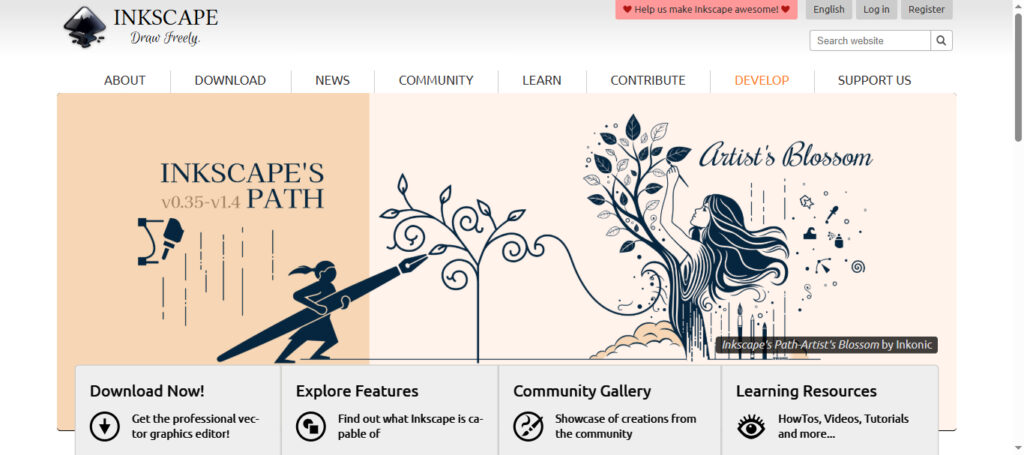
- Visit the Inkscape official website
- Look for the latest stable version.
- Select your operating system (Windows, Linux, or macOS).
- Download the setup as per your system and architecture.
Step 2 – Install
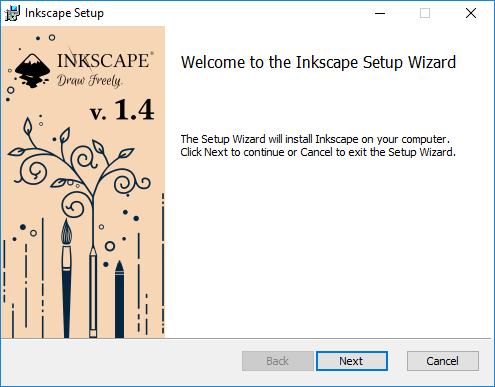
- Run the setup file you downloaded in the earlier step.
- Click “Next” on the welcome screen.
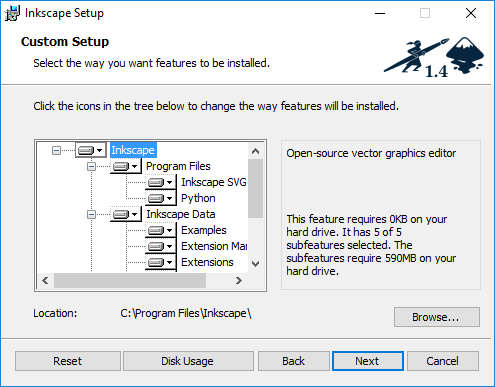
- Verify all Inkscape components are selected for installation and specify the installation folder.
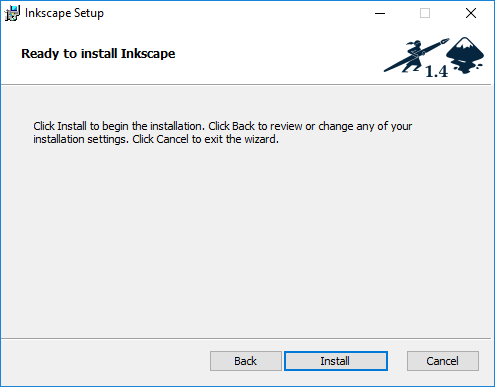
- Click “Install” to begin the installation process.
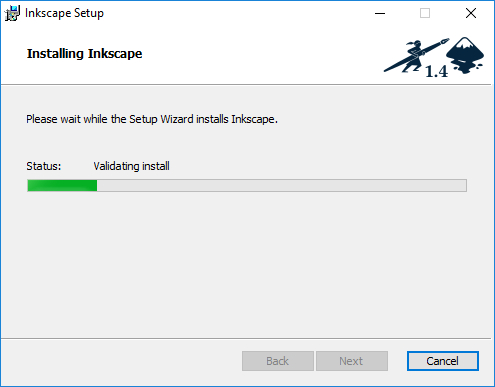
- Wait for the installation to complete; this may take a few minutes.
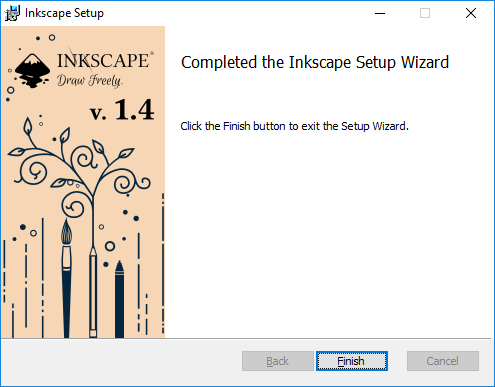
- After installation, click the “Finish” button to exit the setup wizard.
Exploring the Inkscape Interface
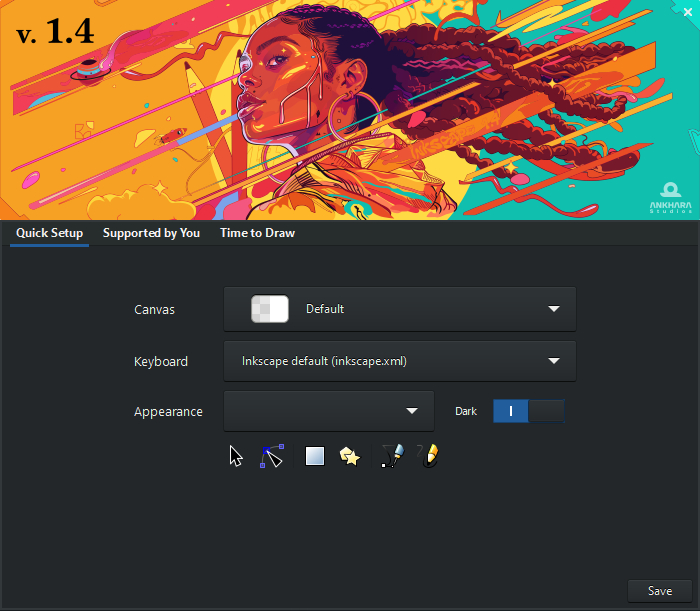
When you open Inkscape, you’ll see a Welcome window with three tabs:
Quick Setup
It gives different options for adjusting the Inkscape interface.
- Canvas allows you to choose how you want your canvas to look. You can customize the background color or enable a checkerboard pattern for transparency.
- Keyboard lets users choose shortcut presets (Inkscape Default, Adobe Illustrator, or CorelDRAW) for a familiar workflow.
- Appearance allows customization of UI icon style (colorful or monochrome).
- Dark and Light slider changes the UI theme to dark or light.
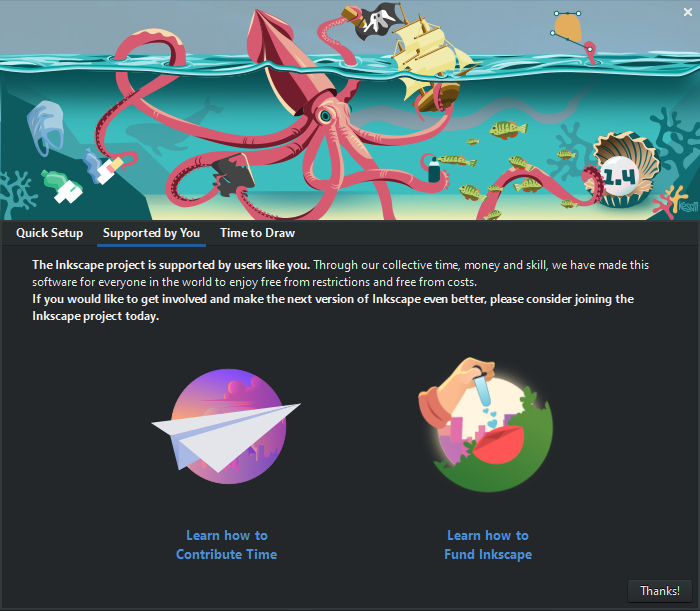
Supported by You
Here, you can explore ways to support and contribute to the Inkscape community.
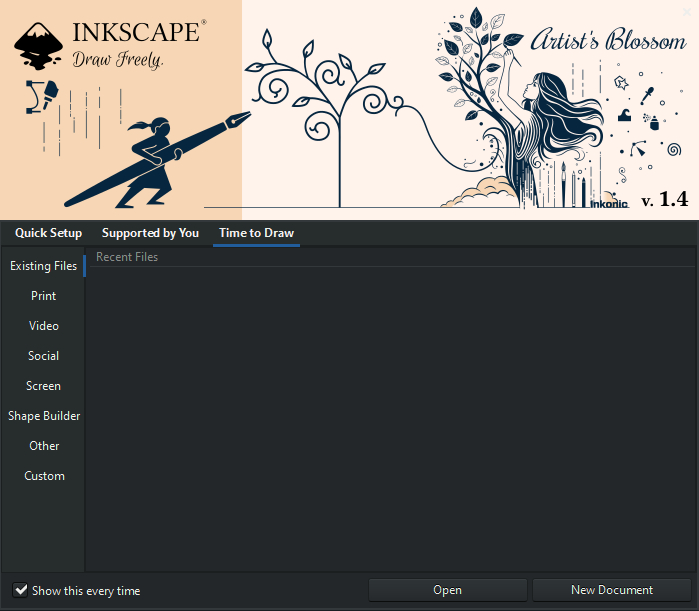
Time to Draw
It contains built-in templates created for various fields like print, video, and social or loads your existing designs created earlier in Inkscape. Choose a template, load an existing file, or create a new document as per your requirement. If you do not want to see this screen every time you start Inkscape, then uncheck the “Show this every time” option below.
Inkscape User Interface Overview
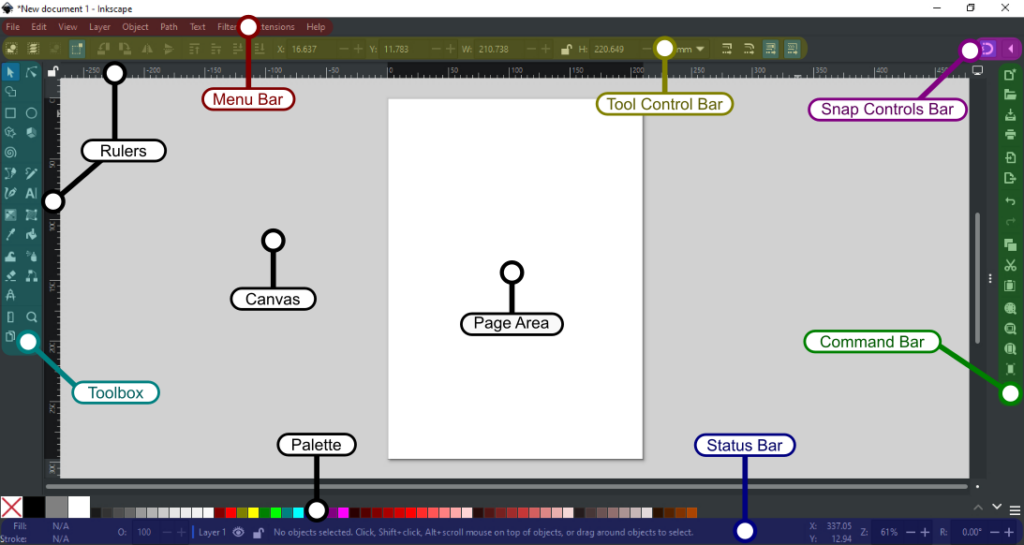
- Page Area & Canvas – The white part that gets exported or printed is page area. Canvas is the full workspace you can use to organize, test, or prepare designs.
- Menu Bar – Located at the top, it provides access to essential functions such as File, Edit, View, and more.
- Toolbox – Found on the left side, this contains tools for drawing, selecting, and editing objects.
- Tool Control Bar – Located above the canvas, this bar displays options related to the selected tool.
- Rulers – Used to measure and align objects precisely within the canvas.
- Snap Controls Bar – Helps in snapping objects to grids, guides, and other elements for precise positioning.
- Command Bar – Provides quick access to frequently used actions such as zoom, undo, and document settings.
- Palette – Displayed at the bottom, allowing quick color selection for objects.
- Status Bar – Shows useful information about the selected object, including colors, position, size, and layer details.
FAQs
Resources for Learning Inkscape
Getting started with Inkscape software is simple when you have the right learning materials. Here are some helpful resources to guide you as you explore its tools and features:
- Official Website: Inkscape.org – Download the latest version and learn more about all the available features.
- Documentation: Inkscape Docs – Access official manuals and detailed guides for every tool and function.
- Community Forum: Inkscape Forums – Ask questions, share ideas, and connect with other Inkscape users.
- Beginner Tutorials: Inkscape Tutorials – Follow step-by-step lessons to start creating your own vector designs.
- YouTube Playlist: Inkscape for Beginners Playlist – Explore our easy-to-follow video tutorials.
Final Thoughts
Inkscape software is an ideal starting point for anyone who wants to learn graphic design without spending money on expensive software. It’s flexible, works well on most computers, and is supported by a strong community full of free tutorials and learning resources.