Introduction
A laurel wreath logo is one of the most timeless design elements used in branding, from sports clubs and academic institutions to luxury product packaging. In this tutorial, you will learn how to create a professional laurel wreath logo in Inkscape from scratch using the Pattern Along Path extension, the Ellipse Tool, and basic Path Operations. No drawing experience is needed; just follow the steps below.
Screenshots in this tutorial were taken from an earlier version of Inkscape. The steps and interface are the same in the current version.
What You Will Learn
- How to draw a leaf shape using the Ellipse Tool and Path Intersection
- How to use the Pattern Along Path extension in Inkscape
- How to create a mirrored leaf pattern for the wreath
- How to split and clean up the circular pattern into a half-wreath
- How to mirror and complete both sides of the wreath symmetrically
- How to color, add text, and finalize your logo
What You Need
Software: Inkscape (version 1.0 or later recommended)
Extensions required: Pattern Along Path (built into Inkscape — no download needed)
Skill level: Beginner to Intermediate
Estimated time: 20–30 minutes
Document Setup
Before starting, set up your document:
- Open Inkscape and go to File > Document Properties (Ctrl + Shift + D)
- Set the document size to 210 x 210 mm
- Make sure snapping is enabled (press % to toggle)
Step 1 — Draw the Leaf Shape
The wreath is built from a single leaf pattern that gets repeated along a circular path. This step creates that leaf.
- Select the Ellipse Tool (E)
- Hold Ctrl and drag to draw a circle on the canvas
- Set fill to none and stroke to any color so you can see the shape
- Switch to the Selector Tool (S) and duplicate the circle (Ctrl + D)
- Drag the duplicate circle horizontally while holding Ctrl until the two circles overlap and create a leaf-like shape where they intersect
- Select both circles. Go to Path > Intersection (Ctrl + *), this keeps only the overlapping area, giving you the main leaf shape
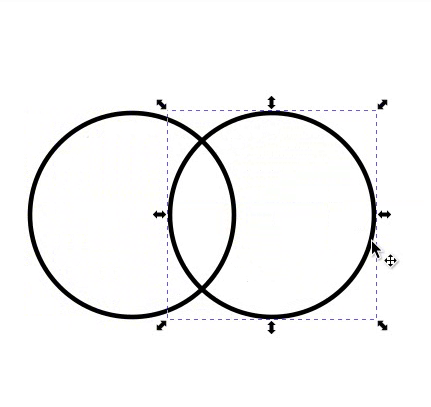
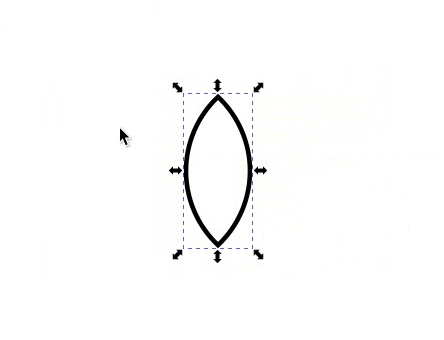
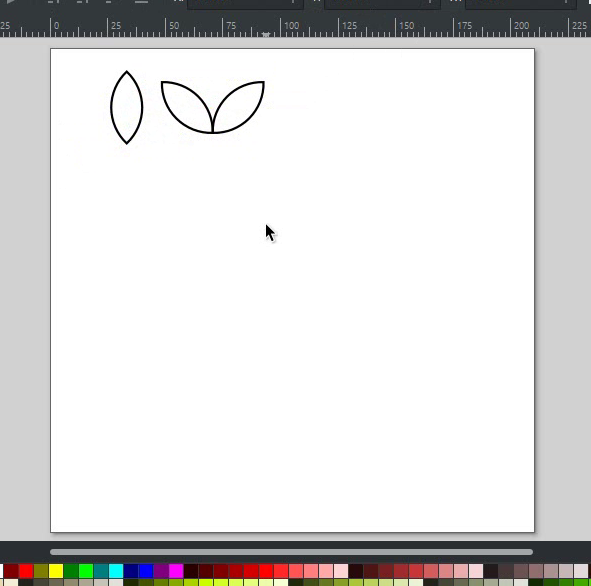
- Now create the mirrored leaf pattern that will repeat along the path. With the Selector Tool active, click the leaf again to switch to rotation mode. Move the rotation center to the lower pointed end of the leaf
- Duplicate the leaf twice (Ctrl + D). Rotate each copy by 45° in opposite directions while holding Ctrl, so you have one leaf pointing left and one pointing right
- Move the original leaf upward so that none of the three leaves overlap
- Select all three leaves and resize them together as needed
- Select the full mirrored leaf pattern, group it (Ctrl + G), and move it aside; you will use it in Step 3
Step 2 — Create the Circular Path for the Wreath
The Pattern Along Path extension needs a path to follow. This circle defines the shape and size of the wreath.
- Select the Ellipse Tool (E)
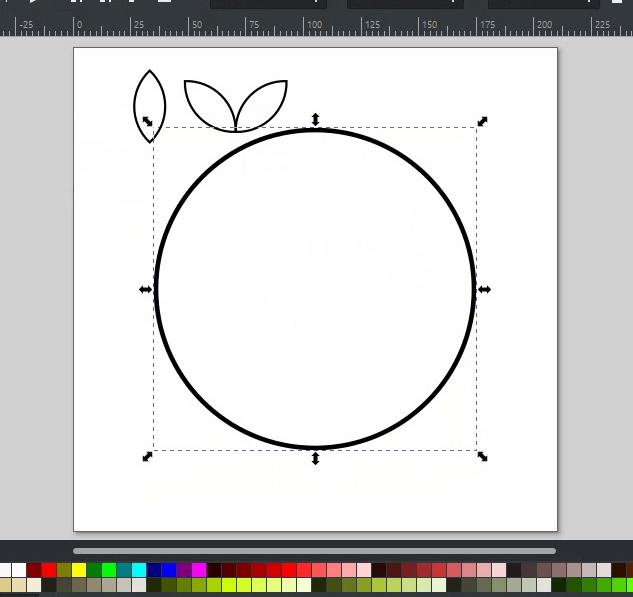
- Hold Ctrl and draw a large circle approximately 140 × 140 mm in the center of the canvas
- Set the fill to none and the stroke to any visible color
- Center the circle on the canvas: go to Object > Align and Distribute, set “Relative to” to Page, then click center on vertical axis and center on horizontal axis
Step 3 — Apply Pattern Along Path
This is the key step. Inkscape’s built-in extension repeats the leaf pattern around the circle.
- Select the mirrored leaf pattern and send it to the top: press Home
- Select the mirrored leaf pattern first, then hold Shift and click the circle to add it to the selection. Order matters: select the leaf pattern first and the circle second.
- Go to Extensions > Generate from Path > Pattern Along Path
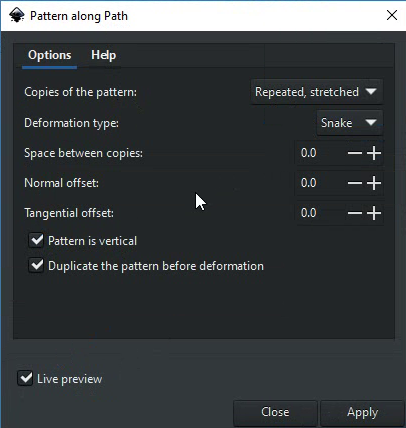
- In the dialog that appears, set these options:
- Copies of the Pattern: Repeated, stretched
- Pattern is vertical: Checked
- Leave all other settings as the default
- Click Apply
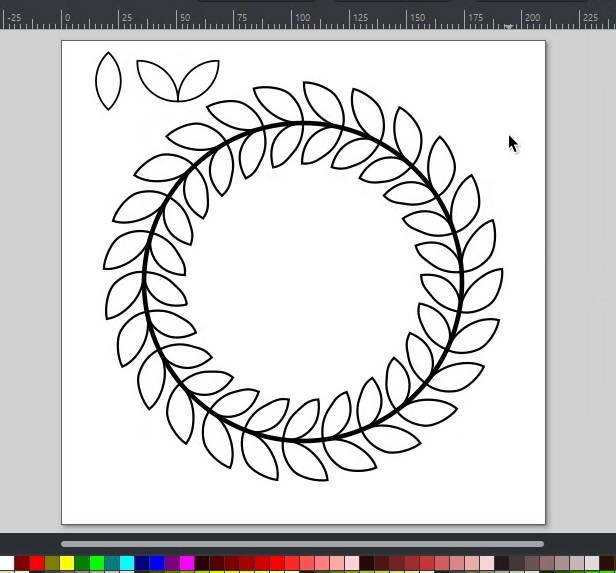
- After applying, you will see the leaf pattern repeated all the way around the circle
Step 4 — Keep One Half Only
A laurel wreath shows one branch on each side, not a full circle. Here you keep one half and prepare it for mirroring.
- Select the circle and hide it from the Layers & Objects Panel (click the eye icon next to it)
- Select and delete the original mirrored leaf group you set aside in Step 1; it is no longer needed
- Select the circular pattern result and ungroup it (Ctrl + Shift + G)
- Select both ungrouped objects (the left and right leaf circular patterns). Go to Path > Combine (Ctrl + K)
- Then go to Path > Break Apart (Ctrl + Shift + K); this separates every leaf into its own individual object
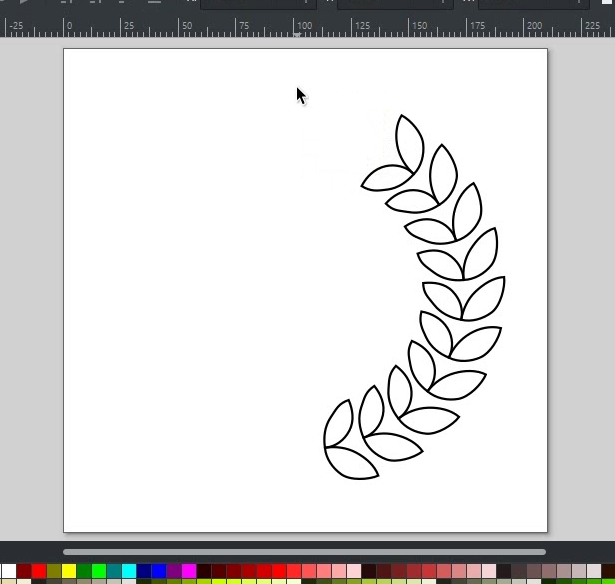
- Select and delete the leaves from one half until only one side of the wreath remains. Delete more leaves if needed to get a clean half
- Select all remaining leaves forming one side and go to Path > Combine
Step 5 — Mirror to the Other Side
- Unhide the circle from the Layers & Objects Panel
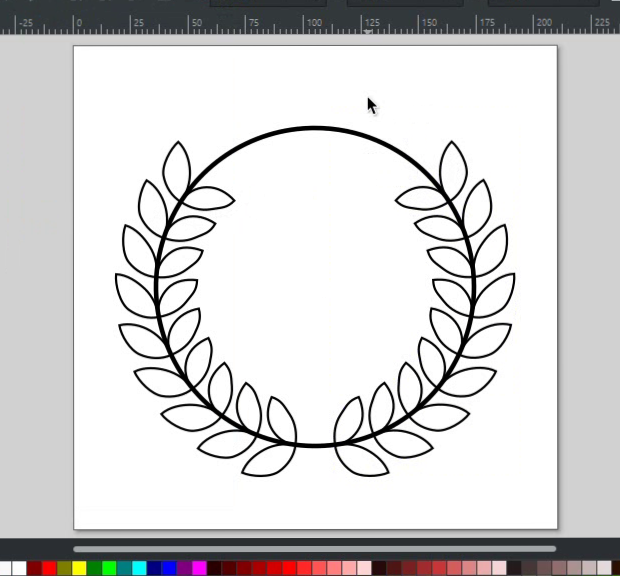
- Select the half wreath and duplicate it (Ctrl + D)
- Flip the duplicate horizontally by pressing H
- Drag the flipped copy horizontally while holding Ctrl and place it on the opposite side of the circle to create a symmetric result
Step 6 — Complete the Branches
This step adds the final single leaf at the top of each branch to complete the wreath shape.
- Select the single leaf you created at the start. Place the lower pointed end on the circular path to form the last piece of the wreath on one side. Rotate it as needed until it aligns naturally with the other leaves
- Duplicate it (Ctrl + D), flip horizontally (H), and place it on the other side to complete the pattern
- Select the circle, then switch to the Node Tool (N)
- Double-click on both sides of the circle where the single leaf’s lower end intersects it; this adds a node at each intersection point
- Select the top node of the circle and break the path there; this converts that node into two separate nodes
- Select those two nodes and delete them, leaving a circular arc instead of a closed circle
- Select both half-wreath patterns and both single leaves (4 objects total) and group them (Ctrl + G)
- Select the Rectangle Tool (R) and draw a rectangle the size of the document
- Rename it “Background” in the Layers & Objects Panel and send it to the bottom (End)
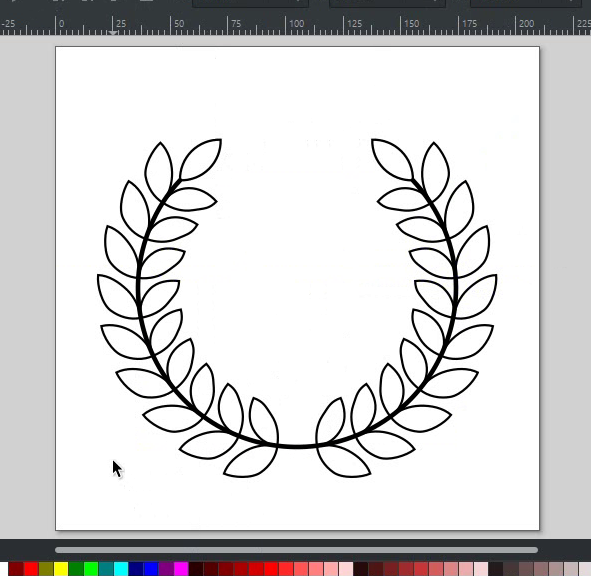
Step 7 — Color and Style the Logo
Your wreath blueprint is complete. Now fill it with color.
- Select the wreath group and open Object > Fill and Stroke (Shift + Ctrl + F)
- Set the fill color to a light gold; try hex code #D3BC5F or any color that suits your brand
- Set the stroke to none
- Select the circular arc path and set its stroke color to the same color as the leaves. Adjust stroke width to match the visual weight of the leaves
- Select the background rectangle and set its fill to a dark color for a dark theme logo. Try hex code #2B0000 or any color that suits your brand. Set its stroke to none

Step 8 — Add Text in the Center (Optional)
A laurel wreath becomes a complete logo when you add a name, initials, or year in the center.
- Select the Text Tool (T)
- Click in the center of the wreath and type your text
- Open Object > Fill and Stroke, and set the text color to match or complement your leaf color
- Adjust the font size so the text fits neatly between the two branches
- Use Align and Distribute to center the text on the page
Tip: For a classic logo look, use a serif font like Playfair Display or a bold all-caps sans-serif. Avoid thin or handwritten fonts as they don’t hold up well at small sizes.
Step 9 — Group and Clean Up
- Select all elements (Ctrl + A)
- Group them: Ctrl + G
- Your laurel wreath logo is complete
To export logo as a PNG with a transparent background: Go to File > Export PNG Image (Shift + Ctrl + E). In the export dialog, make sure you have selected the drawing or the page as the export area. Select PNG as the file format, then click Export. Your PNG will have a transparent background.
Customization Ideas
Once you have the basic wreath, here are ways to make it your own:
- Change the leaf color — try gold (
#C9A84C) for an award-style look, or olive green (#6B7C3D) for a natural feel - Adjust leaf size and spacing — go back to Step 3 and change the spacing value in the Pattern Along Path dialog
- Add a circular text path — type text and use Text > Put on Path to curve it around the wreath
- Use a different leaf shape — try an oak leaf or olive branch shape as the base pattern for a different style
- Add a badge shape — draw a circle or shield behind the wreath and the text to create a full badge logo
Keyboard Shortcuts Used
| Action | Shortcut (Windows) | Shortcut (Mac) |
|---|---|---|
| Zoom in | + | + |
| Zoom out | – | – |
| Duplicate | Ctrl + D | Cmd + D |
| Group | Ctrl + G | Cmd + G |
| Delete | Delete | Delete |
| Ungroup | Ctrl + Shift + G | Cmd + Shift + G |
| Flip Horizontal | H | H |
| Lower to Bottom | End | End |
| Zoom to Fit Page | 5 | 5 |
Panels Used
| Panel | Shortcut (Windows) | Shortcut (Mac) |
|---|---|---|
| Layers & Objects | Ctrl + Shift + L | Cmd + Shift + L |
| Fill & Stroke | Ctrl + Shift + F | Cmd + Shift + F |
| Align & Distribute | Ctrl + Shift + A | Cmd + Shift + A |
FAQs
Final Thoughts
The Pattern Along Path extension is one of Inkscape’s most powerful and underused features. Once you understand how it works, you can use it to create not just laurel wreaths but any kind of repeated decorative pattern — borders, frames, chains, floral patterns, and more.
If you found this tutorial helpful, explore these related tutorials next:
- Polygon & Star Tool in Inkscape — learn to create the geometric shapes often used with wreath logos
- All About the Paths in Inkscape — understand paths more deeply to get better results with Pattern Along Path